1Your appDo these once. Then you are set up.
1 Find the app You want to open the store. ▾
Your screen
→
After
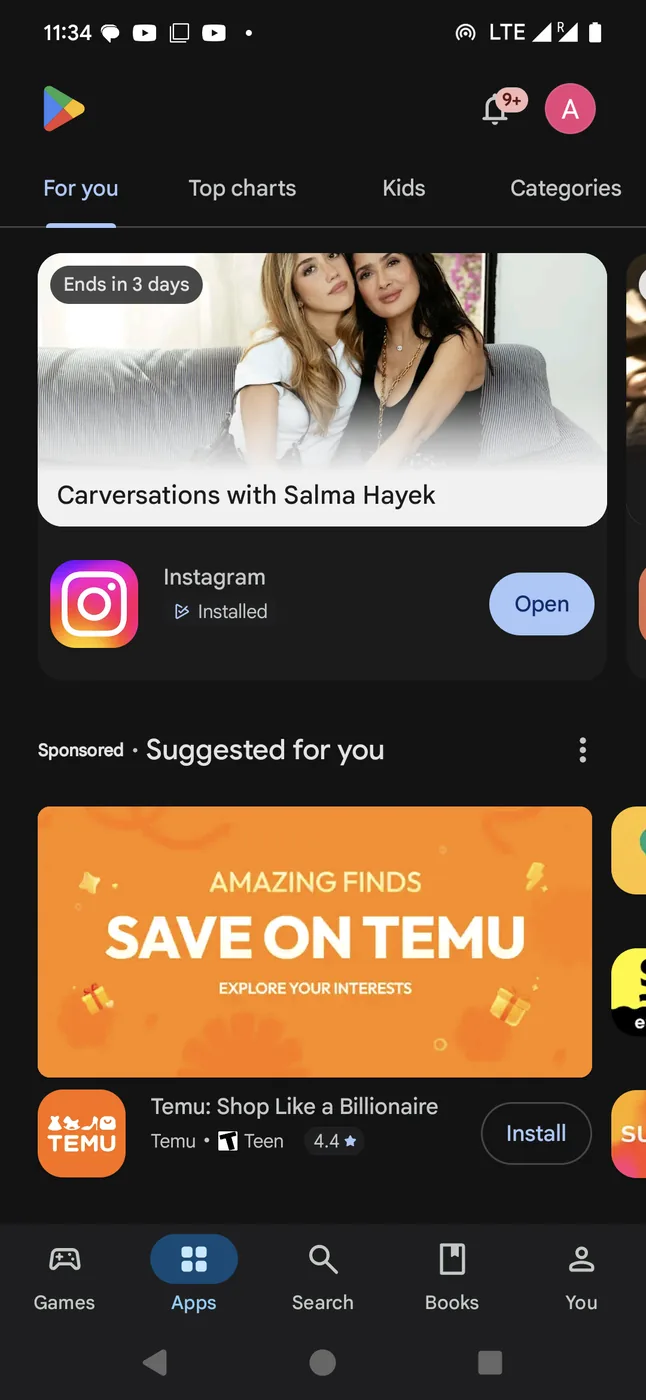
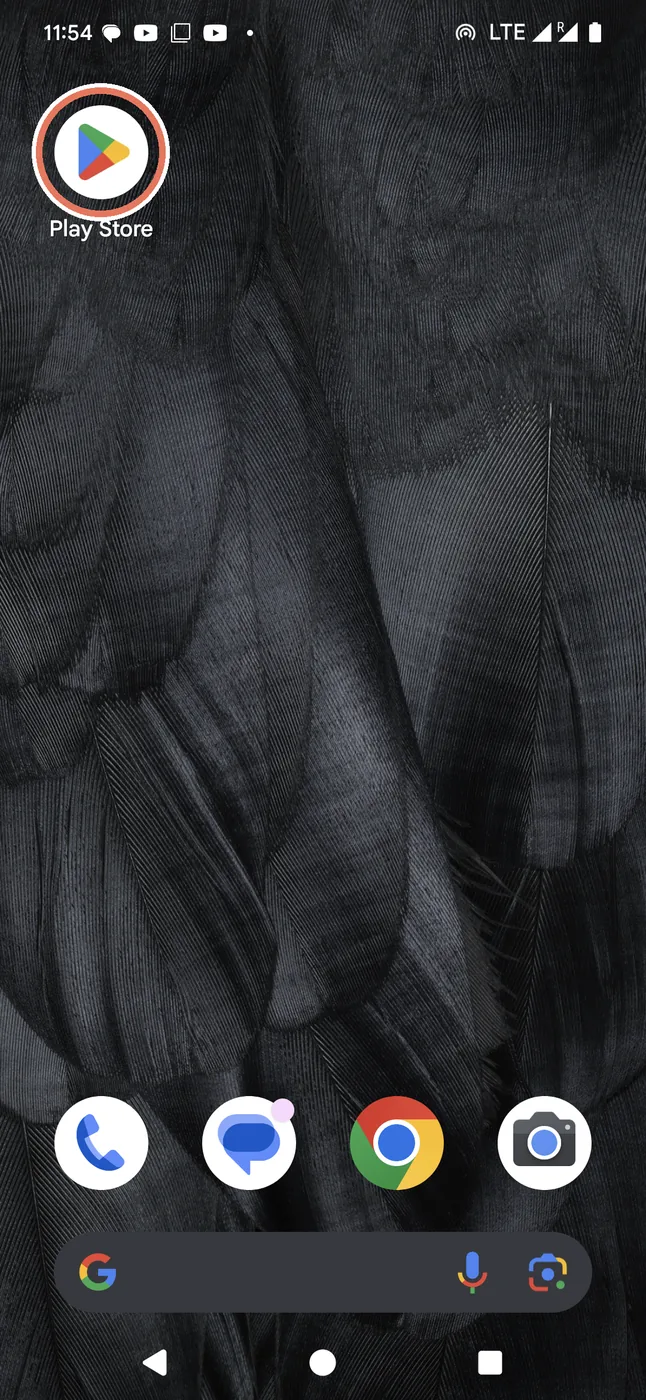
What to doPress the Play Store on your phone. It is a coloured triangle.
On an iPhoneIt is called the App Store, and it is a blue circle with a white A.
What happensThe store opens.
2 Search for it The store will not show it by itself. ▾
Your screen
→
After
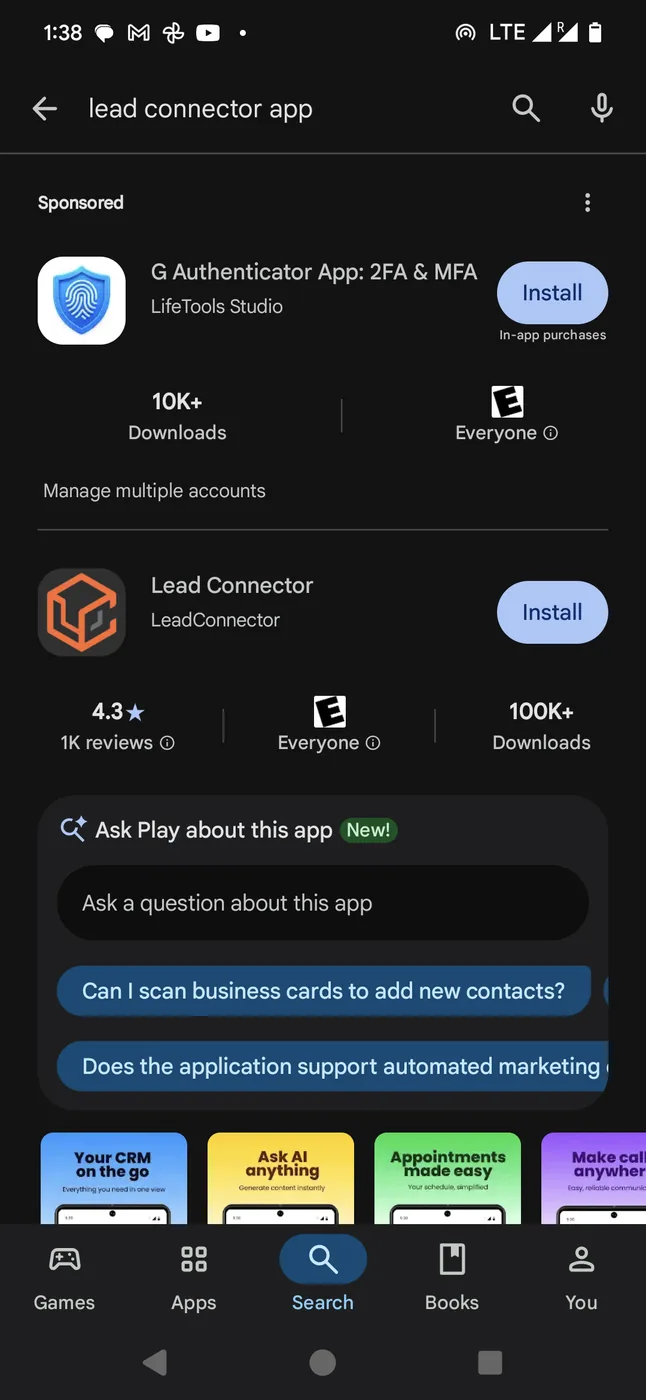
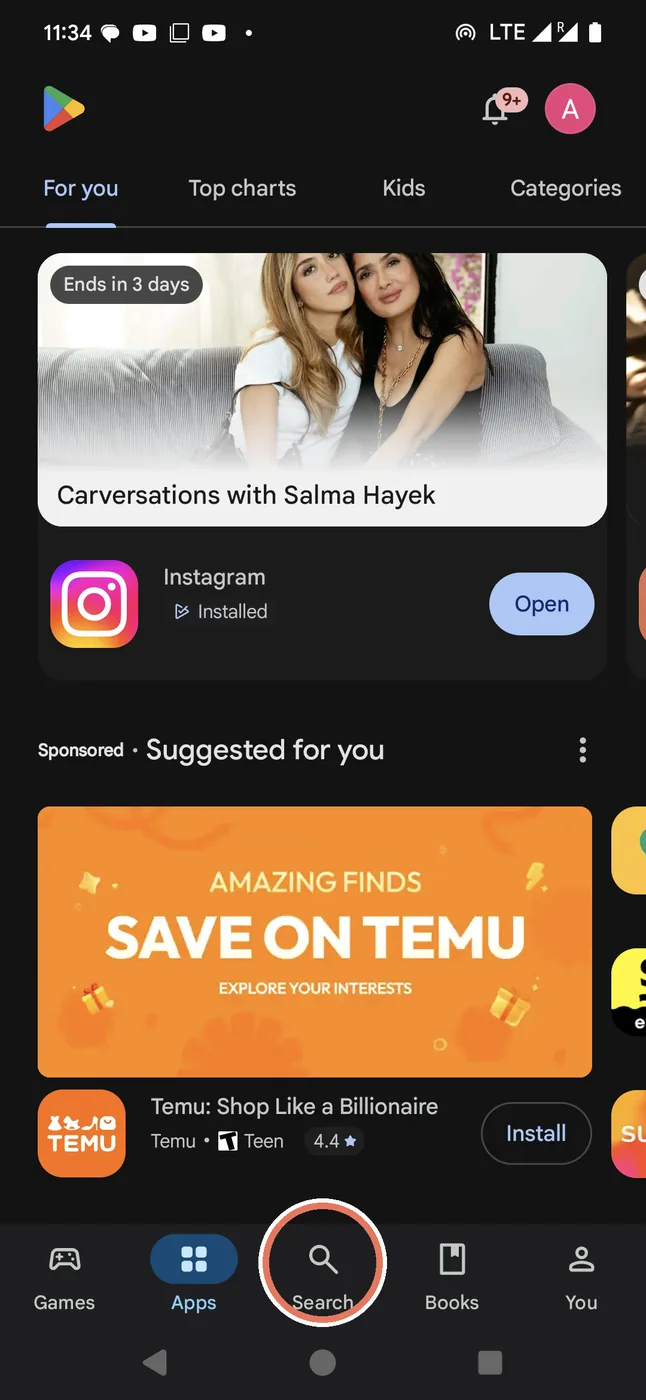
What to doPress Search at the bottom. Type lead connector.
What happensYou see Lead Connector with an orange square.
CarefulOther apps look like it. Yours is the orange one.
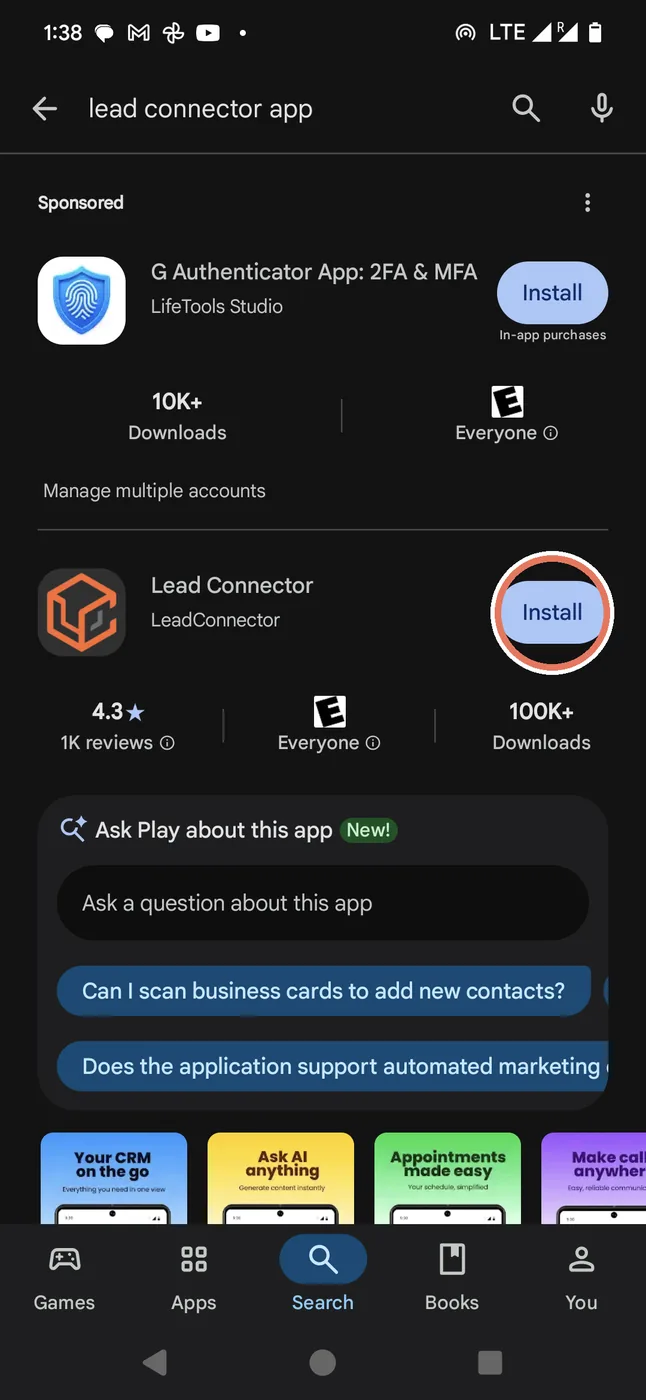
3 Install it You want it on your phone. ▾
Your screen
→
After
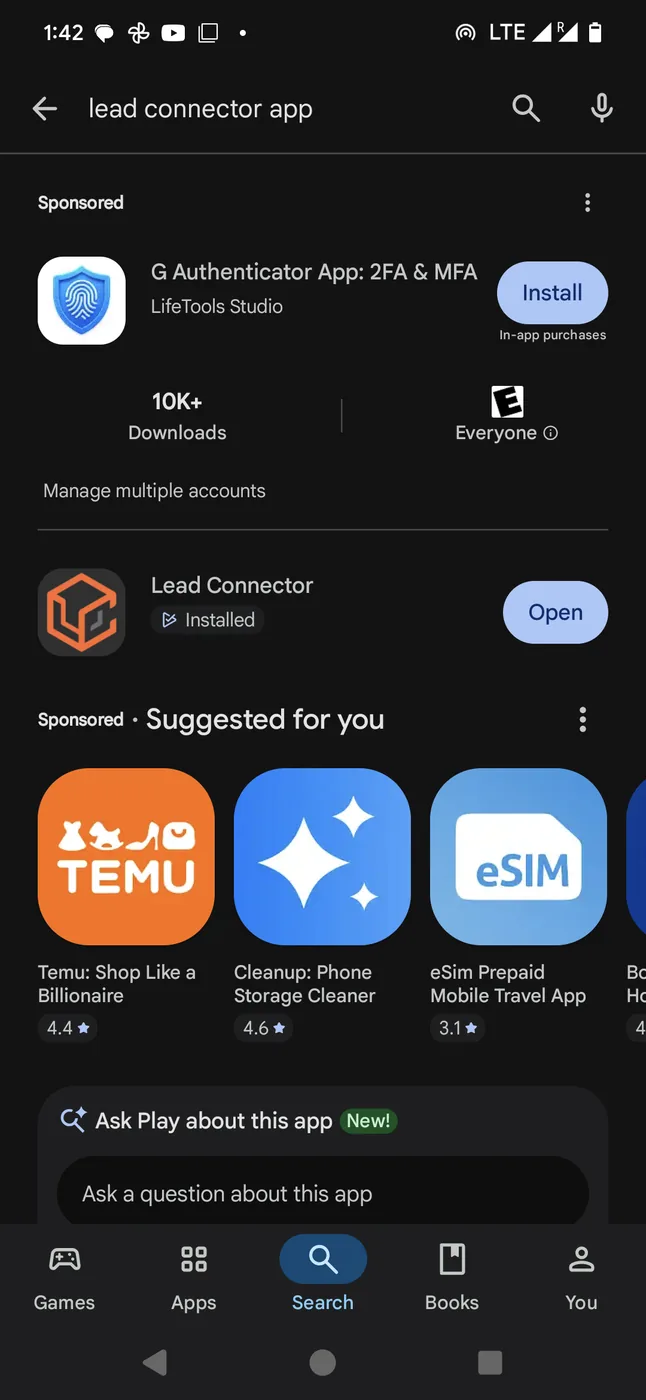
What to doPress the button that says Install.
WaitIt takes about 1 minute.
4 Sign in Type the two things we sent you. ▾
Your screen
→
After
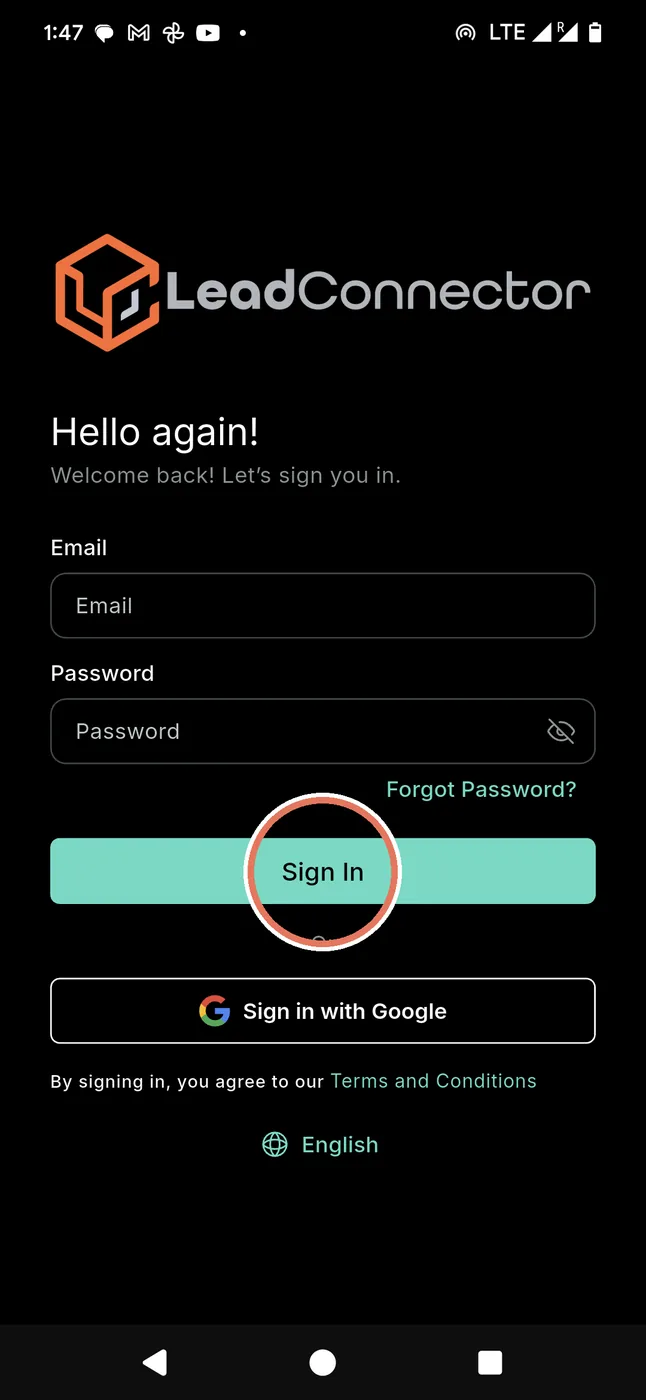
What to doType the email we sent you. Type the password. Press Sign In.
Which emailThe same email and password as your account with us. We send them to you before you start.
Good newsYou only do this one time.
5 Get your code It asks for a code the first time. ▾
Your screen
→
After
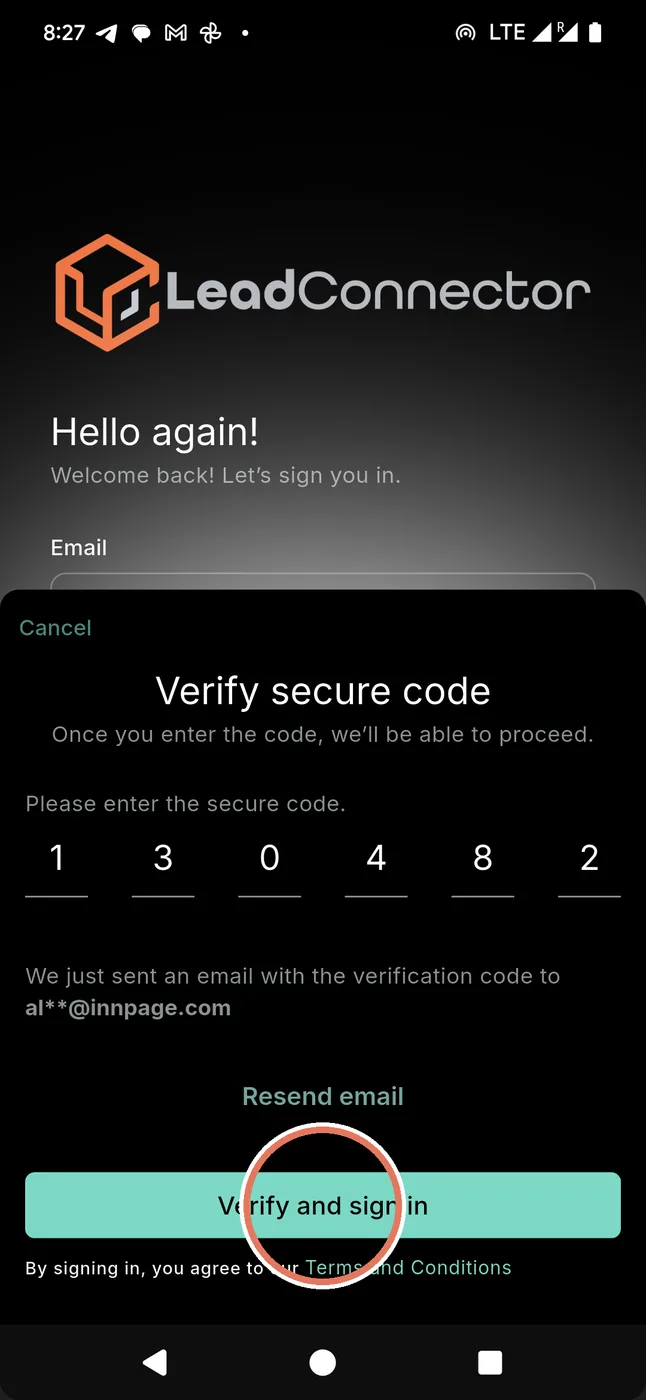
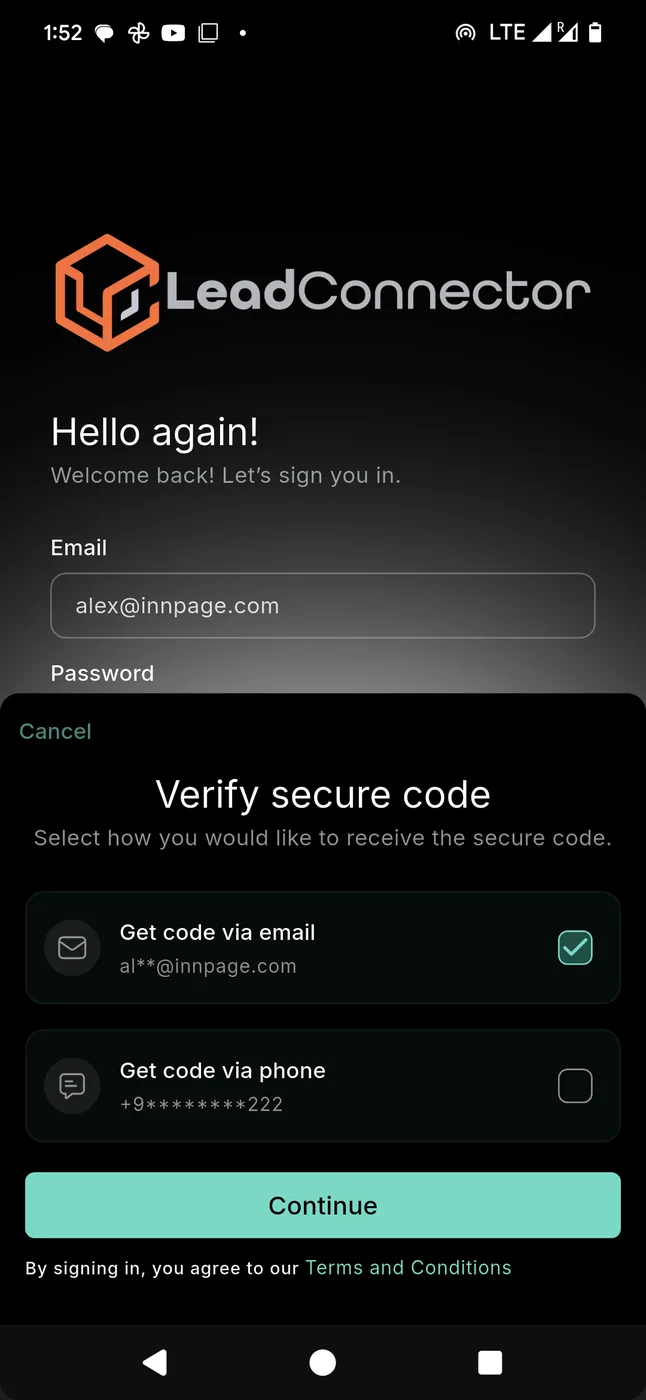
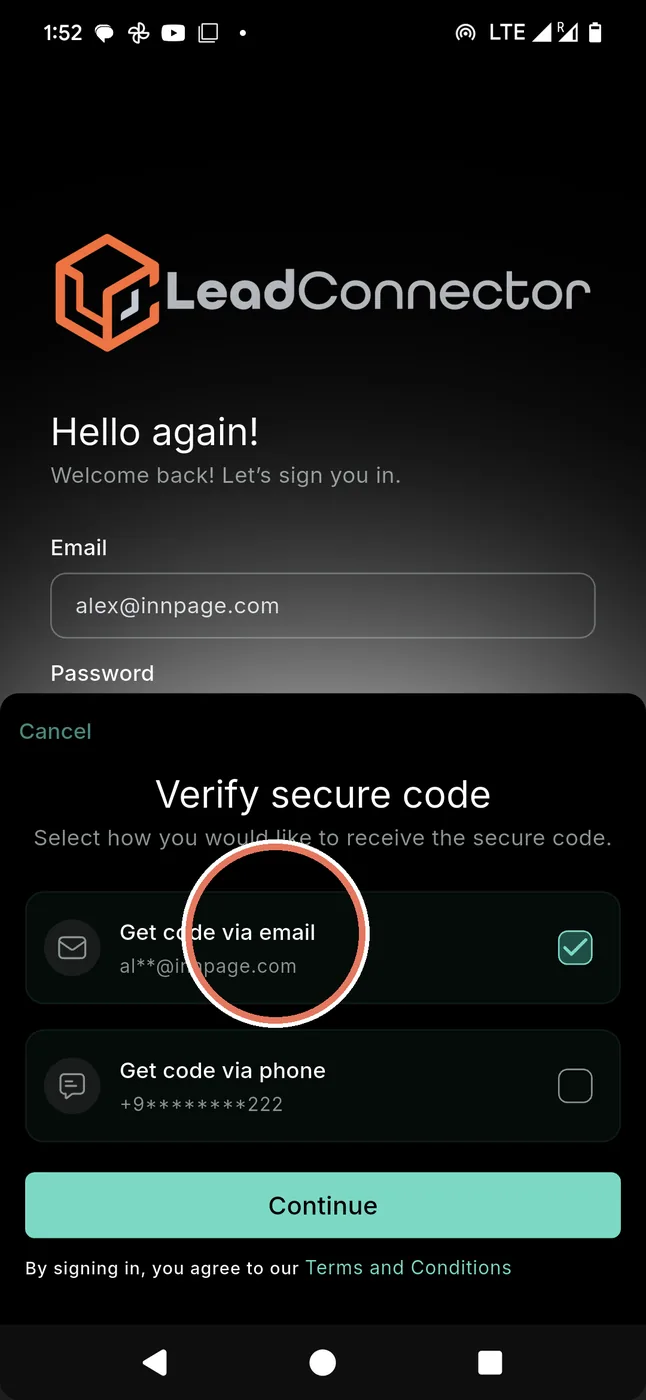
What to doPress Get code via email. Press Continue.
What happensA code arrives in your email. Type it in.
Only onceIt does not normally ask again on this phone. If it ever does, do the same thing again.
6 Turn on alerts This is how your phone tells you a customer is waiting. ▾
Your screen
Allow Lead Connector to send you notifications?
Allow
Don’t allow
A drawing. Your phone shows this once, just after you sign in.
→
After
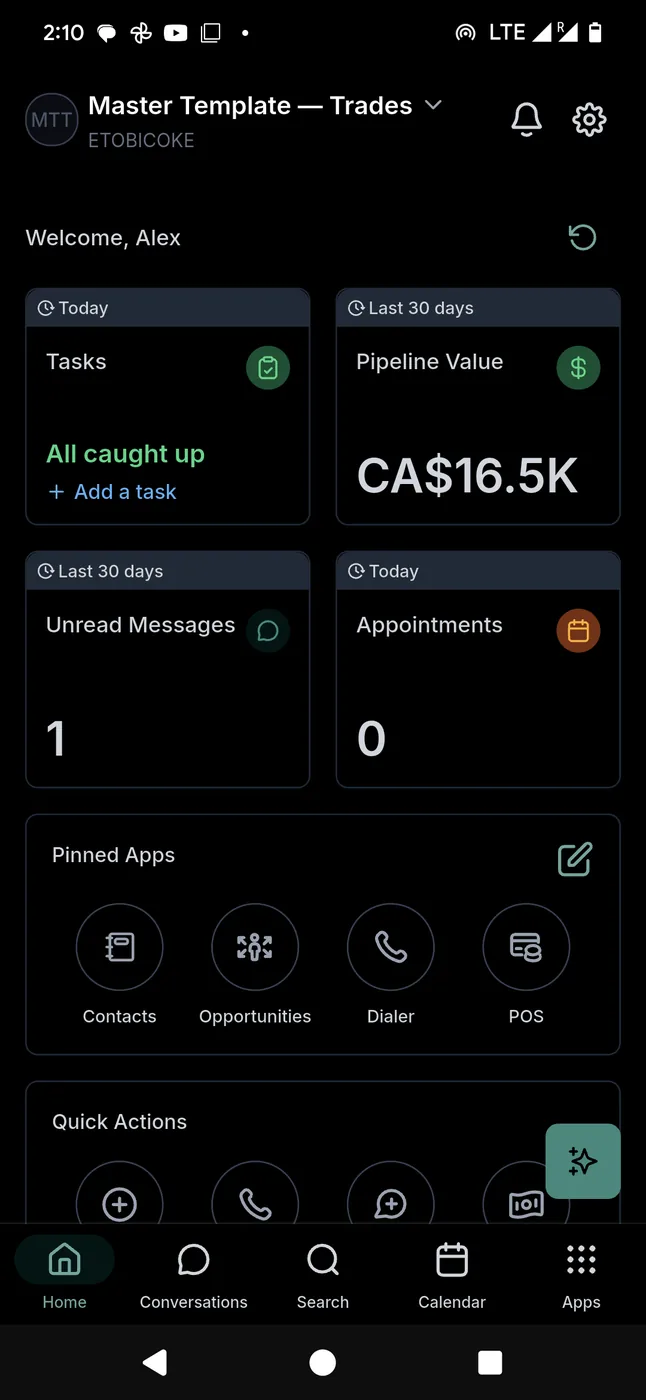
What to doPress the button that says Allow.
What happensYour phone rings for a new job. It rings for a new review.
CarefulPress Allow. Do not press the other button.
7 If you pressed "Don't allow" You want your alerts back. ▾
Only if it went wrongSkip this if your alerts work.
The switch
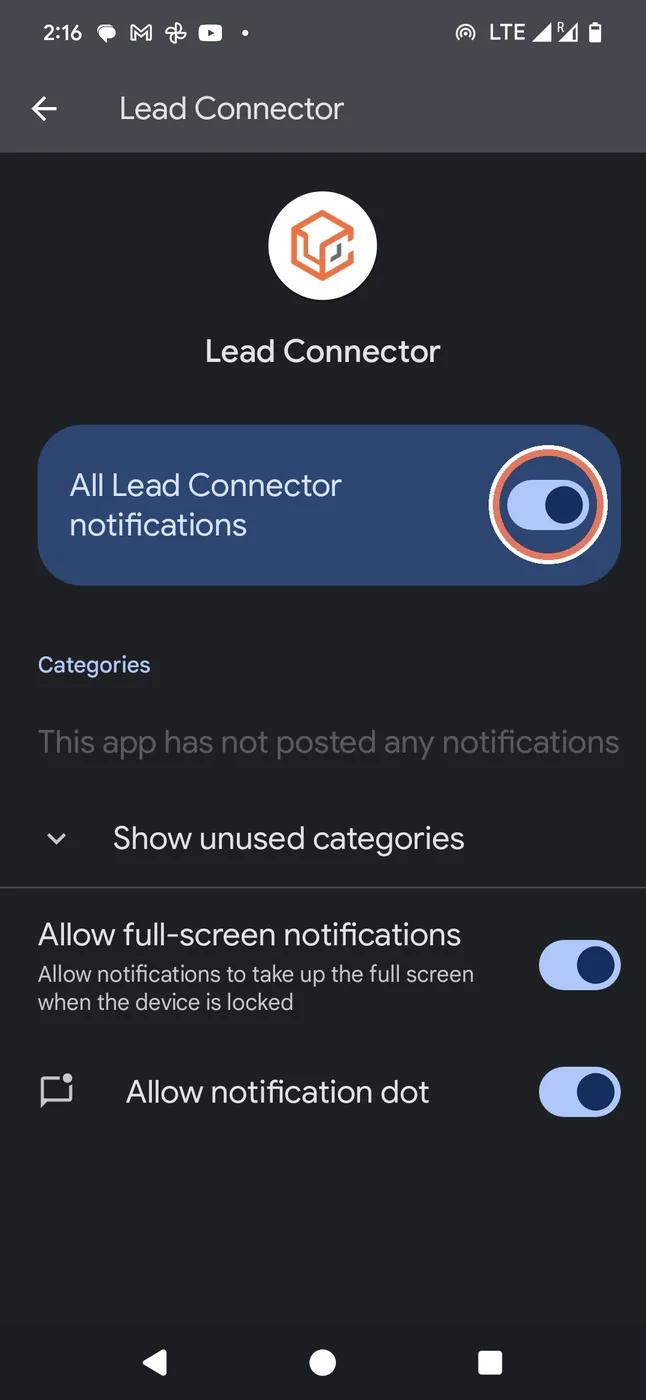
On AndroidSettings → Apps → Lead Connector → Notifications.
On iPhoneSettings → Lead Connector → Notifications.
What happensA switch. Turn it on. Now your phone tells you again.
8 If something looks wrong The four things that actually go wrong. ▾
My customer says no message cameOpen the job. Does it say Status: Won? If it says anything else, that is why — press Edit, set it to Won, press Save.
Still nothing? Check the phone number on their record.
Still nothing? Check the phone number on their record.
I pressed something and the screen looks wrongClose the app. Open it again. Nothing is lost.
RememberNothing you press can delete a customer or a review.
2Your dayOne job, from beginning to end. This is the part that pays you.
1 Read your messages Every morning. Two minutes. ▾
Your screen
→
After
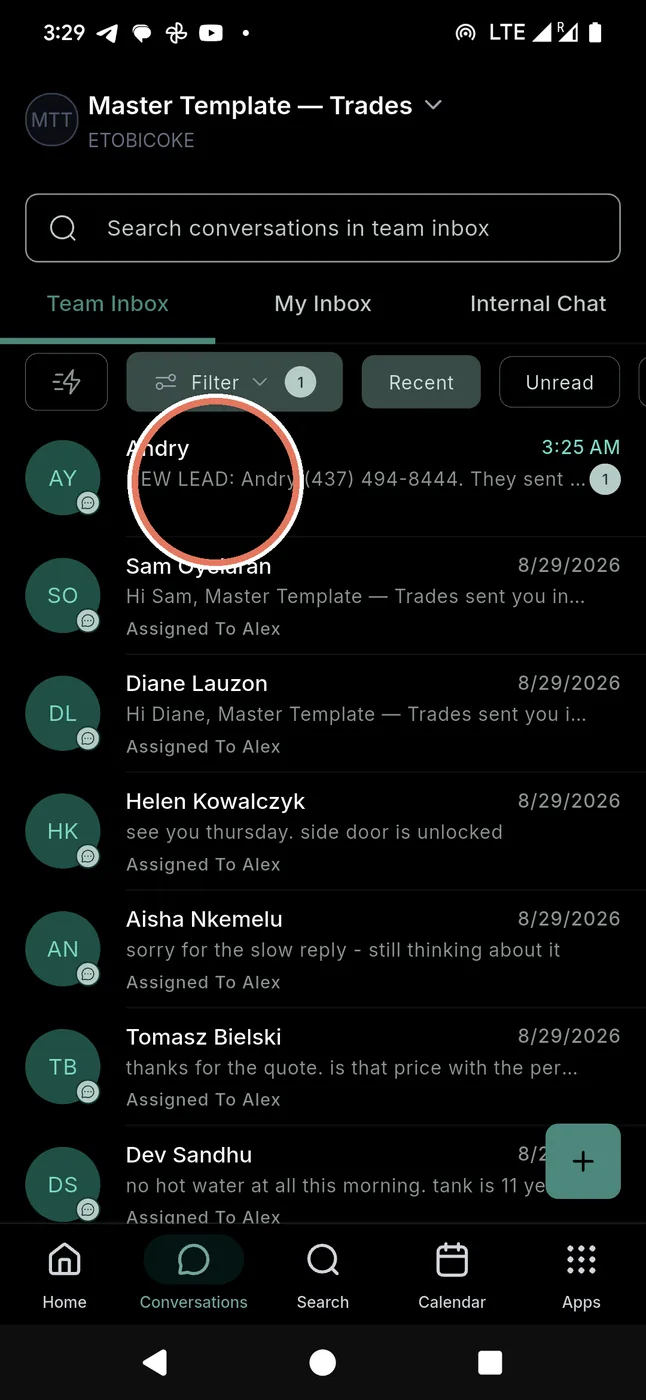
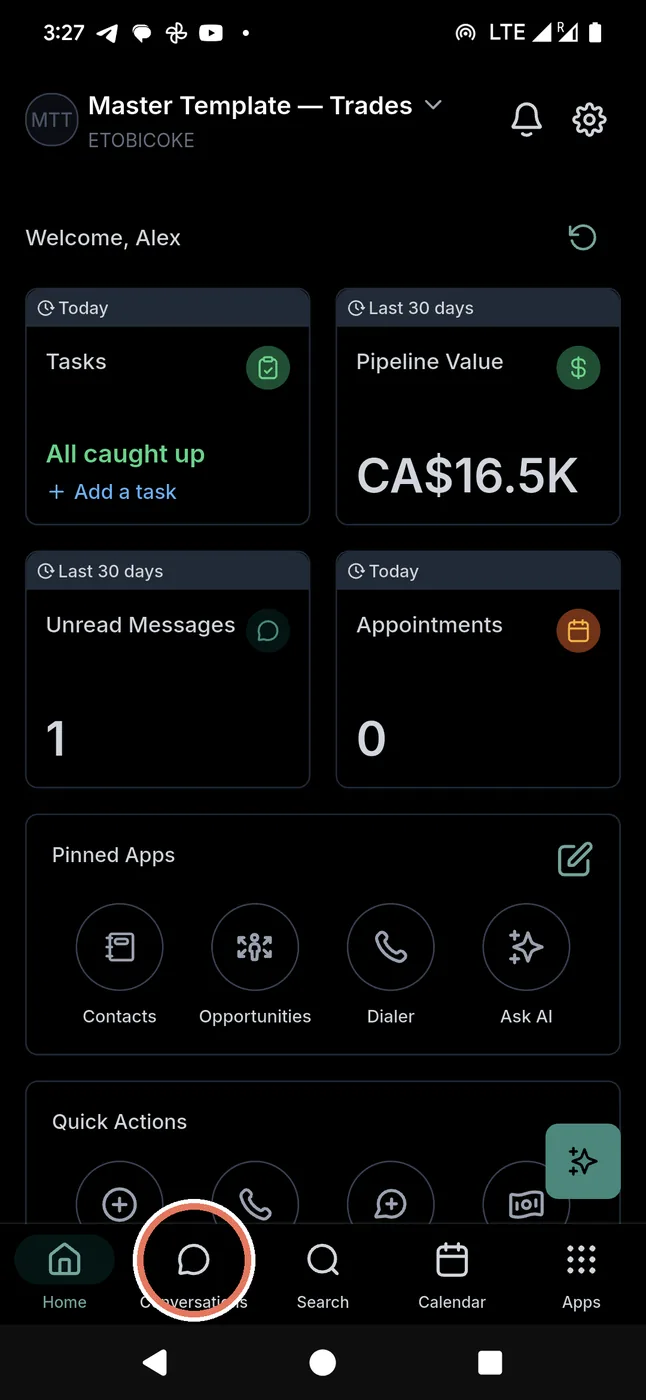
What to doPress Conversations at the bottom.
What happensEvery call and text is in one list. The newest is at the top.
WhyThe app answered your phone while you were working. This is what it caught.
The five buttons at the bottom
Home your numbers · Conversations your messages ·
Search find a person · Calendar your visits ·
Apps everything else. They are always there.
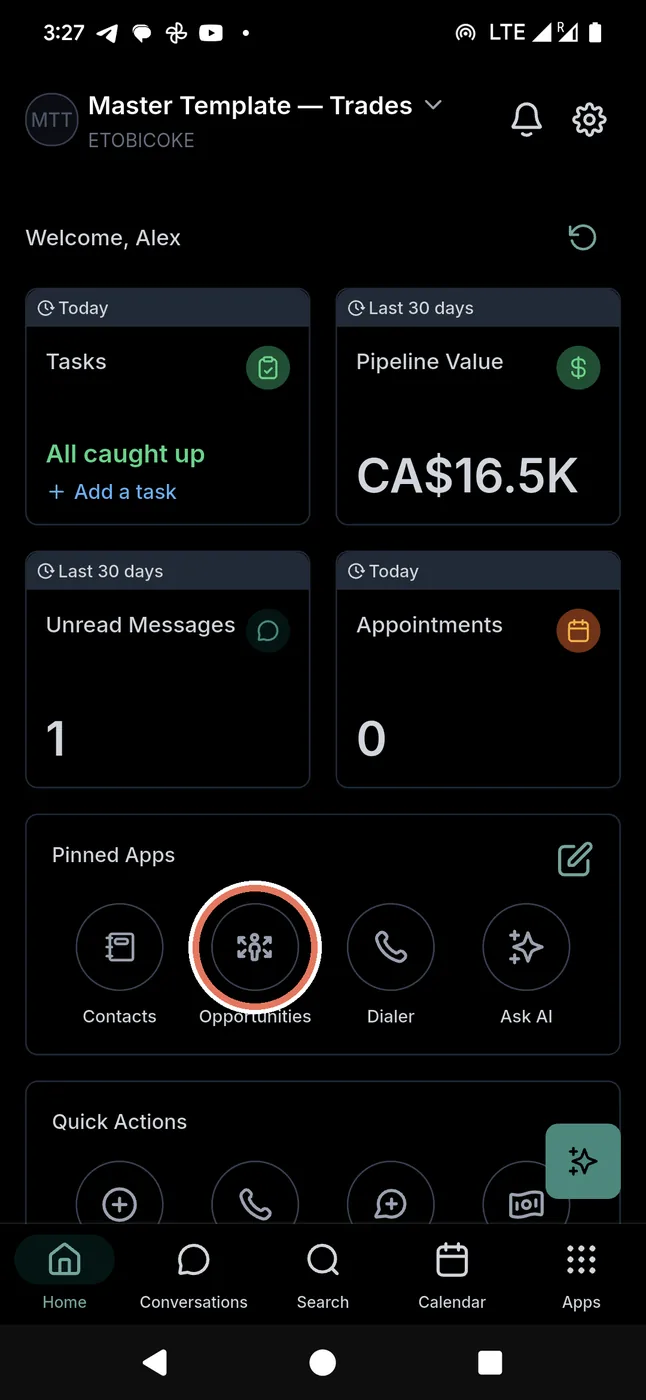
Opportunities is not down there. It is on your first screen, in the middle. That is where your jobs live.
Opportunities is not down there. It is on your first screen, in the middle. That is where your jobs live.
2 Answer within one hour This is how you win the job. ▾
Your screen
→
After
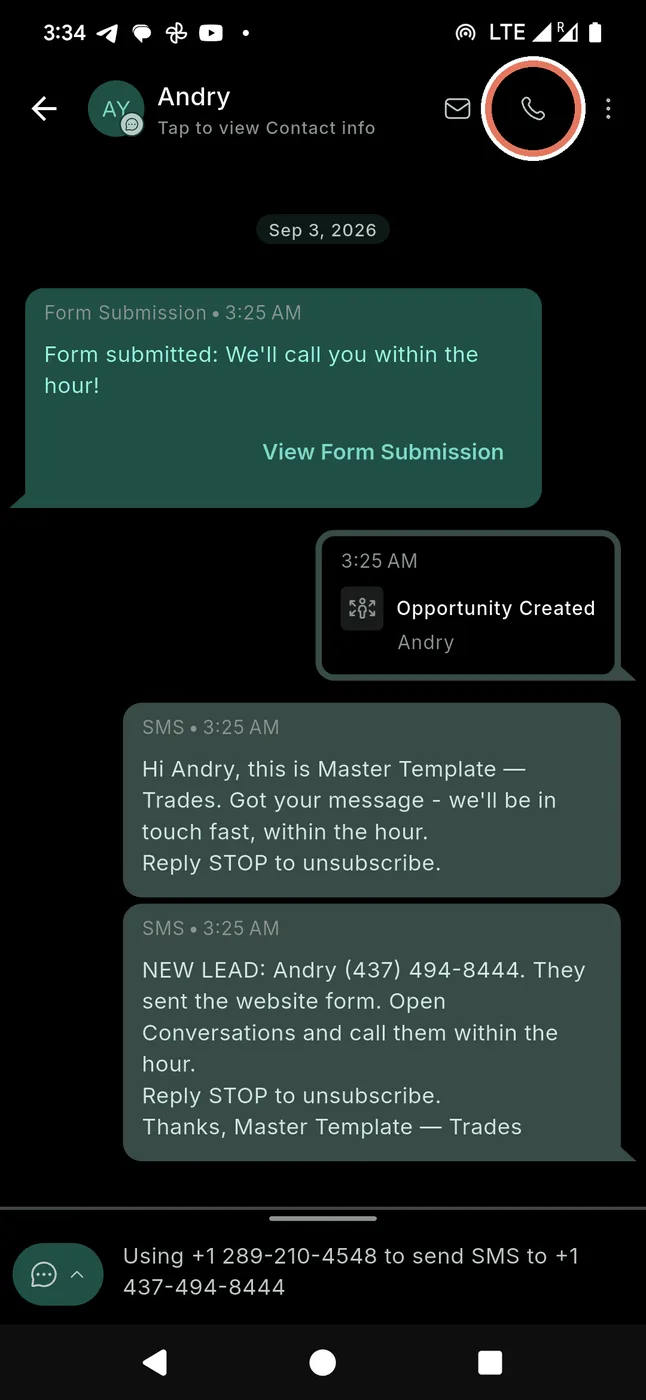
What to doPress their name. Press the phone at the top, next to the envelope. Talk.
Your own number stays privateThe answer goes out from your business number. They never see your mobile.
Why one hourMost people hire the first company that answers. One day is too slow.
3 Phone them from the app Some jobs need a voice. Call from here, not from your own phone. ▾
Press this
What to doOpen their message. Press the phone at the top, next to the envelope. Talk.
What happensThe call goes out from your business number. The app writes it down under their name. When they answer, the red number on Home goes away.
Not from your own phoneIf you dial from your own phone, the app does not know you called. The customer also sees your private number.
Two ways the call ends
- They want you to come. Do nothing with the card now. When you have given a price, it moves to Warm Lead.
- They said no, or you got no answer three times. Move the card to Cold Lead. That is step 6, They said no.
Why move itA card left in New Lead looks like a job you still have to chase. Your board should show only real work.
4 Your four columns Every job is one card. ▾
1. Press Opportunities
→
2. Press the two arrows
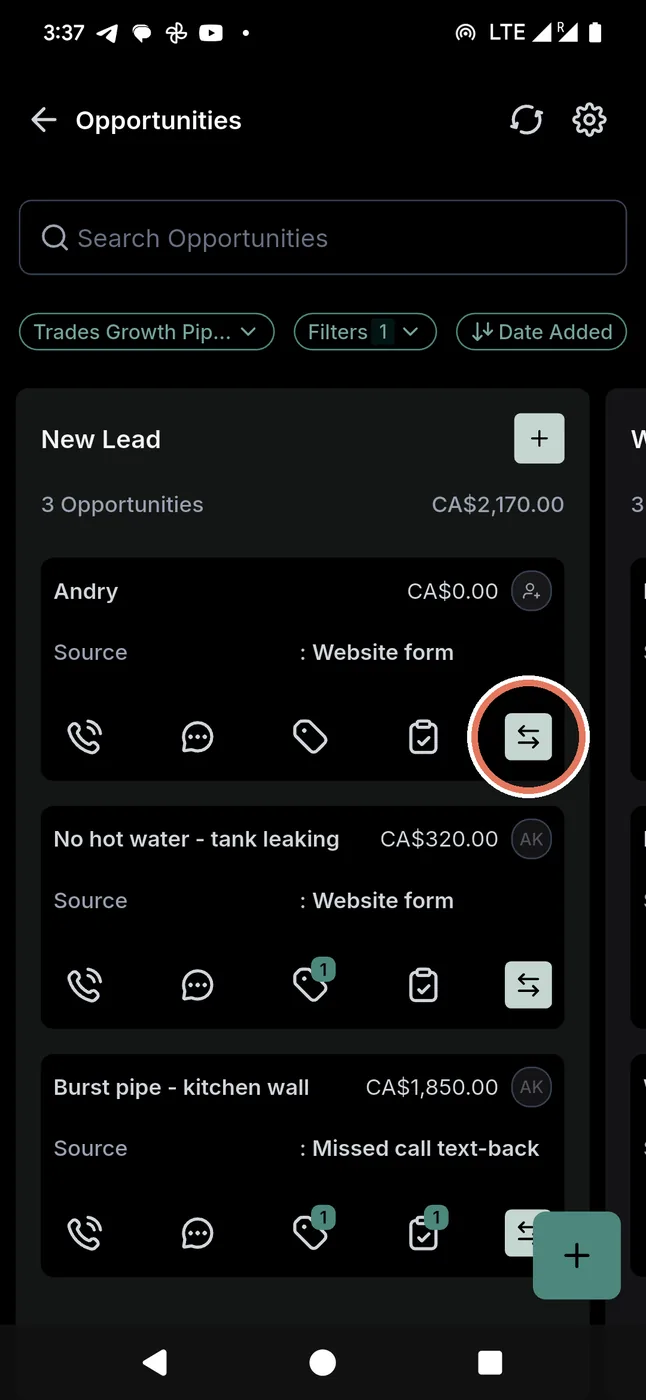
3. Your four columns
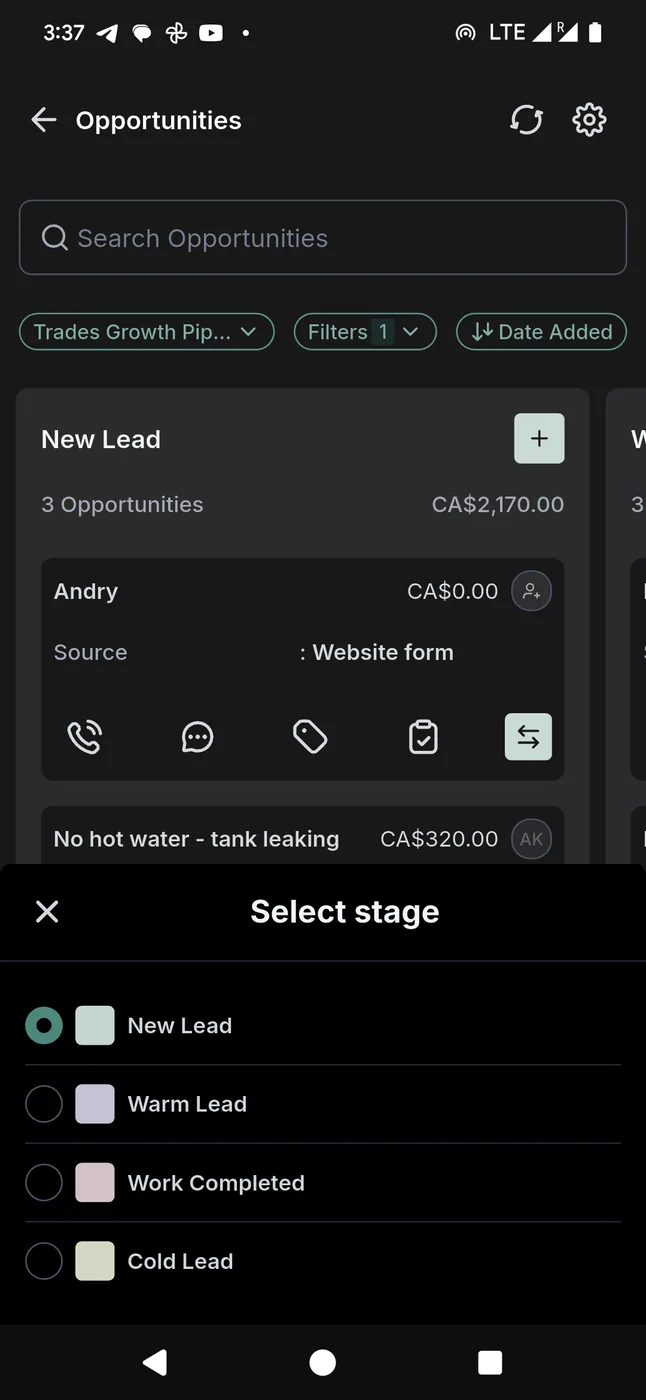
1. Press OpportunitiesOn your first screen. Your job board opens on New Lead.
2. Press the two arrowsOn Andry’s card, bottom right. Not the name.
What happensA list opens: Select stage. Those are your four columns.
What they mean
- New Lead — they just called.
- Warm Lead — you went and gave a price.
- Work Completed — you did the job.
- Cold Lead — they said no.
If you cannot find a customerPress Search. Type their phone number.
I moved a card to the wrong columnMove it back. Nothing is broken.
But if you moved it to Work Completed by mistake, phone us. We check whether a message already went out to that customer.
But if you moved it to Work Completed by mistake, phone us. We check whether a message already went out to that customer.
5 The job is done Two words to change, before you drive away. ▾
This is the one that pays youEverything else in this book exists so that you can do this. Take it slowly the first time.
Four presses, from the first to the lastStart on your
first screen — the one you see when you open the app.
1. Press Opportunities
→
2. Press the name of the job
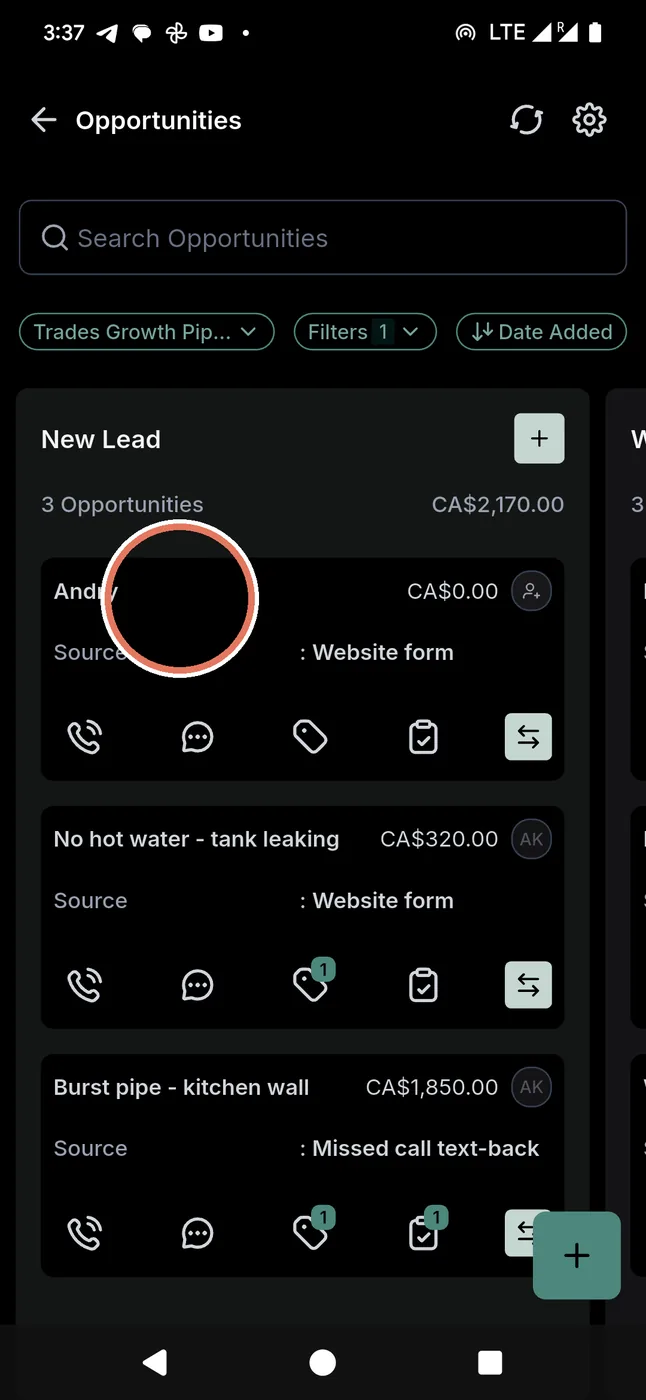
3. Press Edit
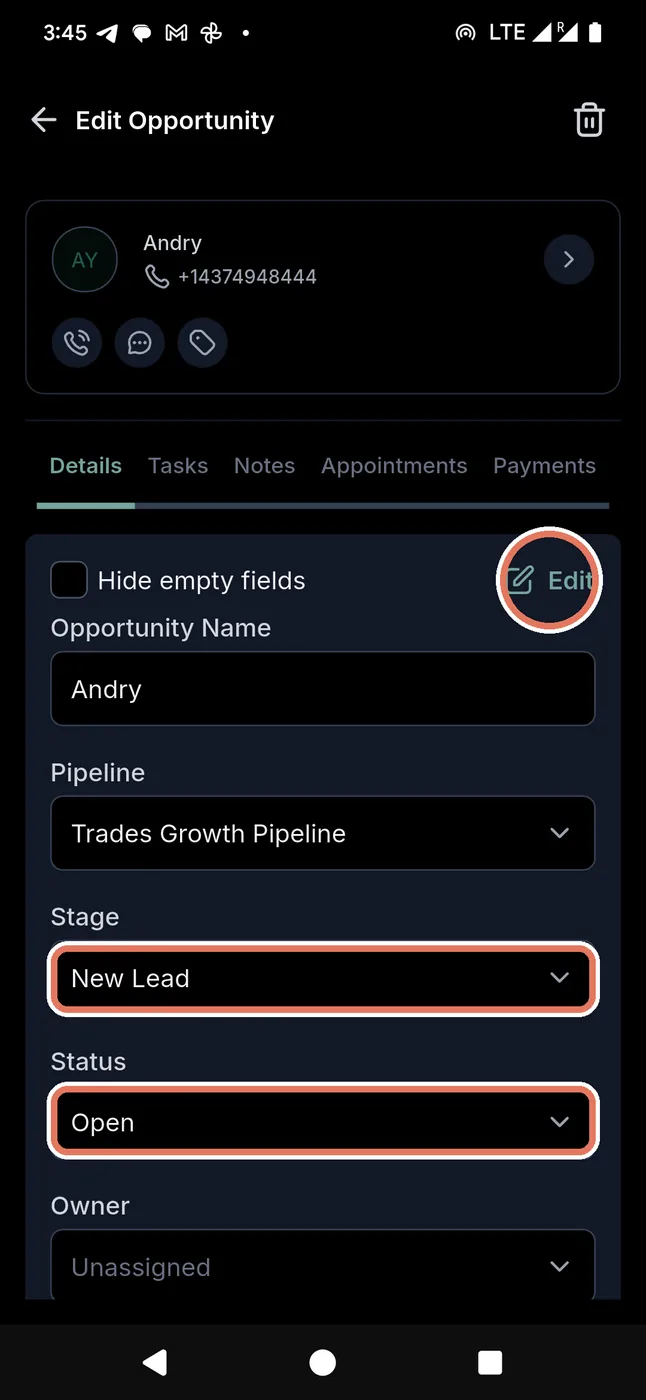
→
4. Two words, then the green button
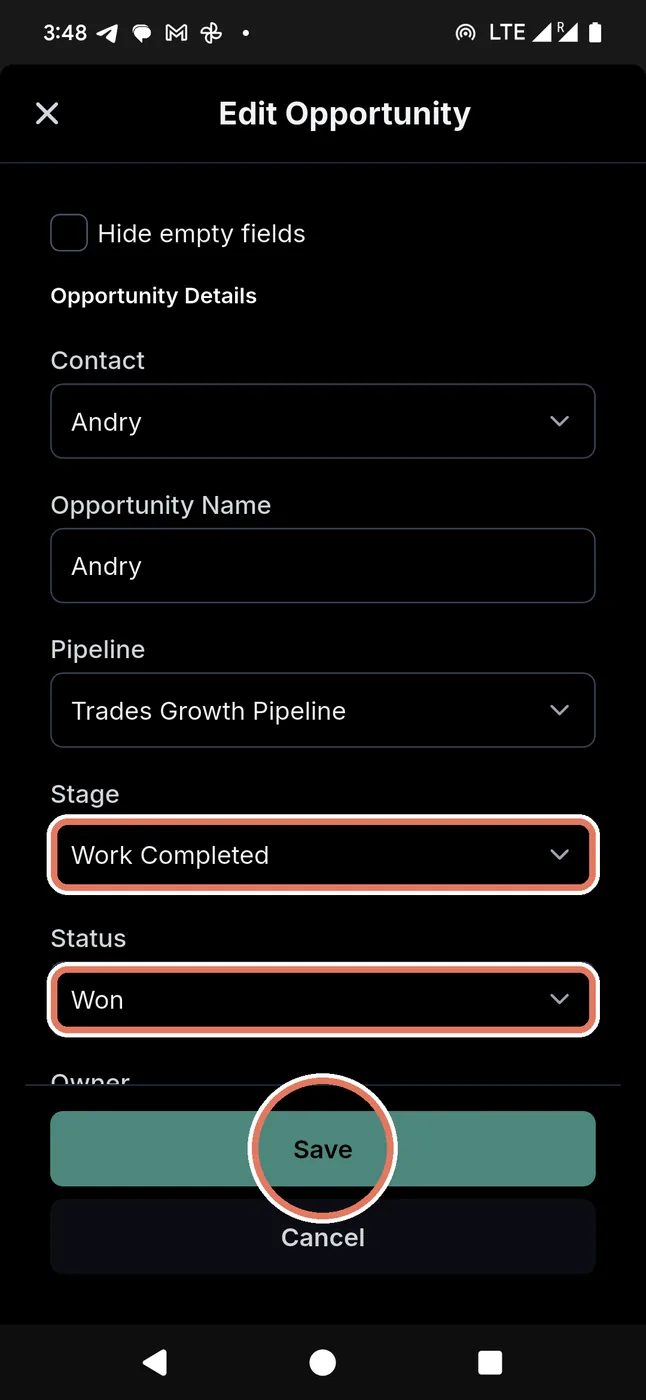
1. Press OpportunitiesOn your first screen. Your
job board opens.
2. Press the name of the jobThe words —
not the little buttons underneath them.
3. Press EditTop right of the grey box.
4. Change two words, then Save
Stage
New LeadWork Completed
Status
OpenWon
Status sits directly under Stage. Then press the green Save.Nothing is saved until you press SavePress Cancel, or the back arrow, and both words go back to how they were. No review is sent.
Why two words and not one?They sound the
same. They are not. One is for you. One is for the system. You need both.
Stage
For your eyesStage is which column the job sits in on your board.
Setting it to Work Completed slides the card into the Work Completed column. Now you can see the job is finished without opening it.
That is all it does. Nothing is sent to anybody.
Status
For the systemStatus tells the app what really happened to the job.
Won means "I did the work." That is the word the app is listening for.
The moment you save it, the app texts your customer and asks for a review.
Stage only → your board looks right. Your customer hears nothing.
Status only → the review goes out, but the job still looks unfinished on your board.
Both → board right, review sent. This is what you want.
One way to remember itStage is where the
job sits. Status is what happened to it. A job can sit in the last
column and still not be marked as done — that is why there are two.
What happensThe app asks your customer for a
review. You write nothing.
5. Check it went outPress Conversations at the bottom. Your customer’s message is at the top of the list. That is the app asking for you.
If nothing is thereThe message did not go. Phone us — do not send one yourself, it will stop the app trying again.
Do not skip WonWon is the word that sends the review. Moving the job to Work Completed on its own sends nothing.
6 They said no Move the card to Cold Lead. ▾
1. Press the two arrows
→
2. Press Cold Lead
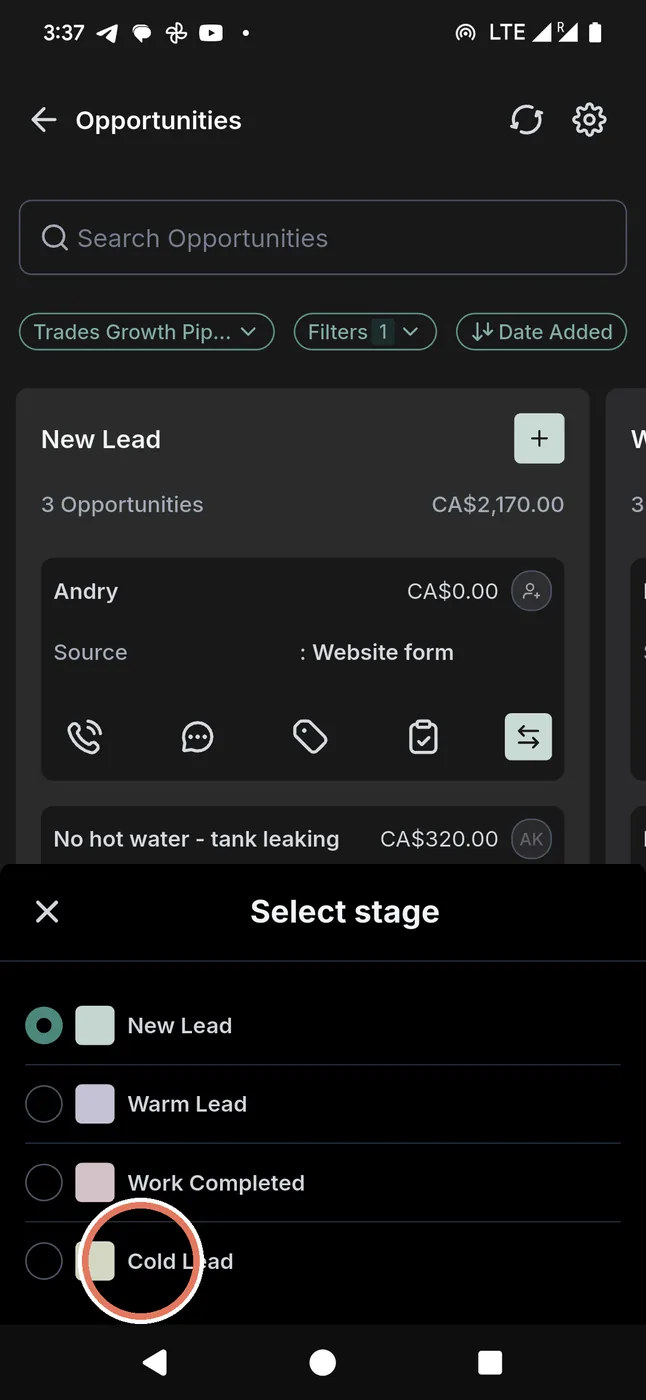
A shortcut, for the other columns onlyOn every card there is a small button with two arrows, like this ⇆. It moves a card quickly, without opening it.
It does not send anything. That is why the finished job is not done this way.
It does not send anything. That is why the finished job is not done this way.
What to doPress the two arrows. Press Cold Lead.
What happensThe reminders stop. Nobody is chased for a job they turned down.
Not wastedThey stay on your list. We can come back to them later.
3Your reviewsReviews are how new customers choose you.
1 Open your apps You want to find your reviews. ▾
Your screen
→
After
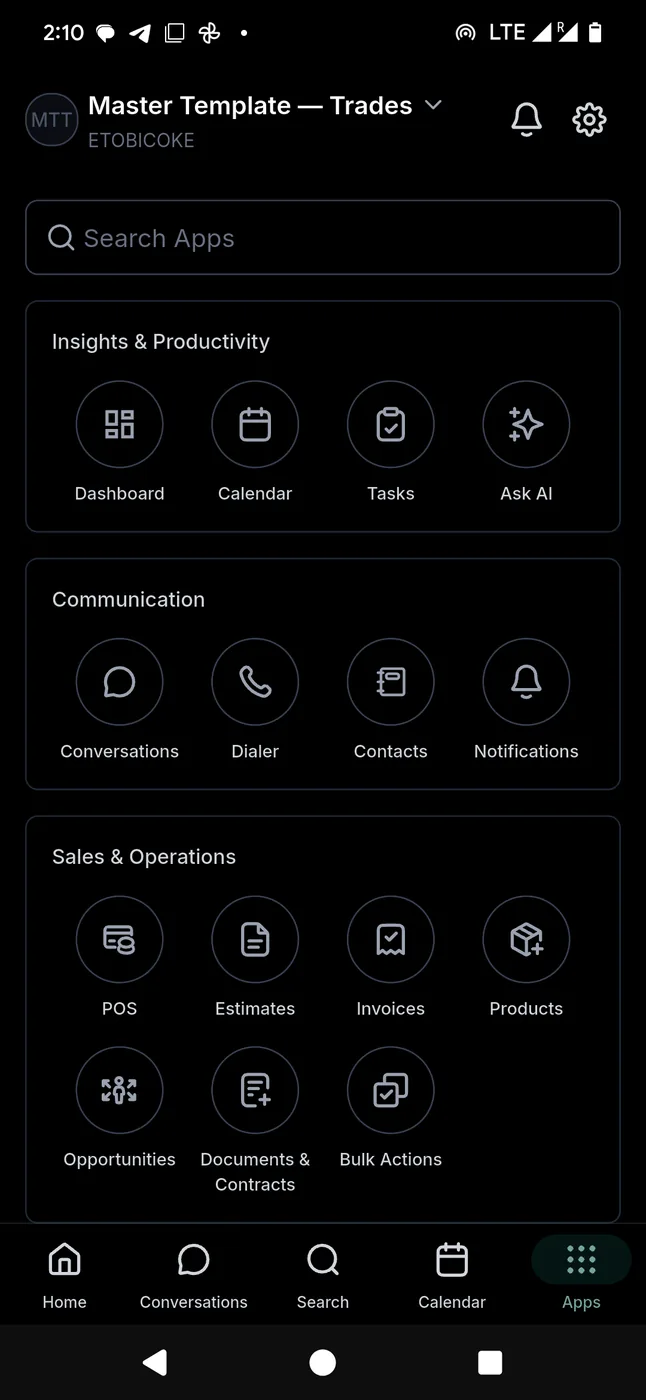
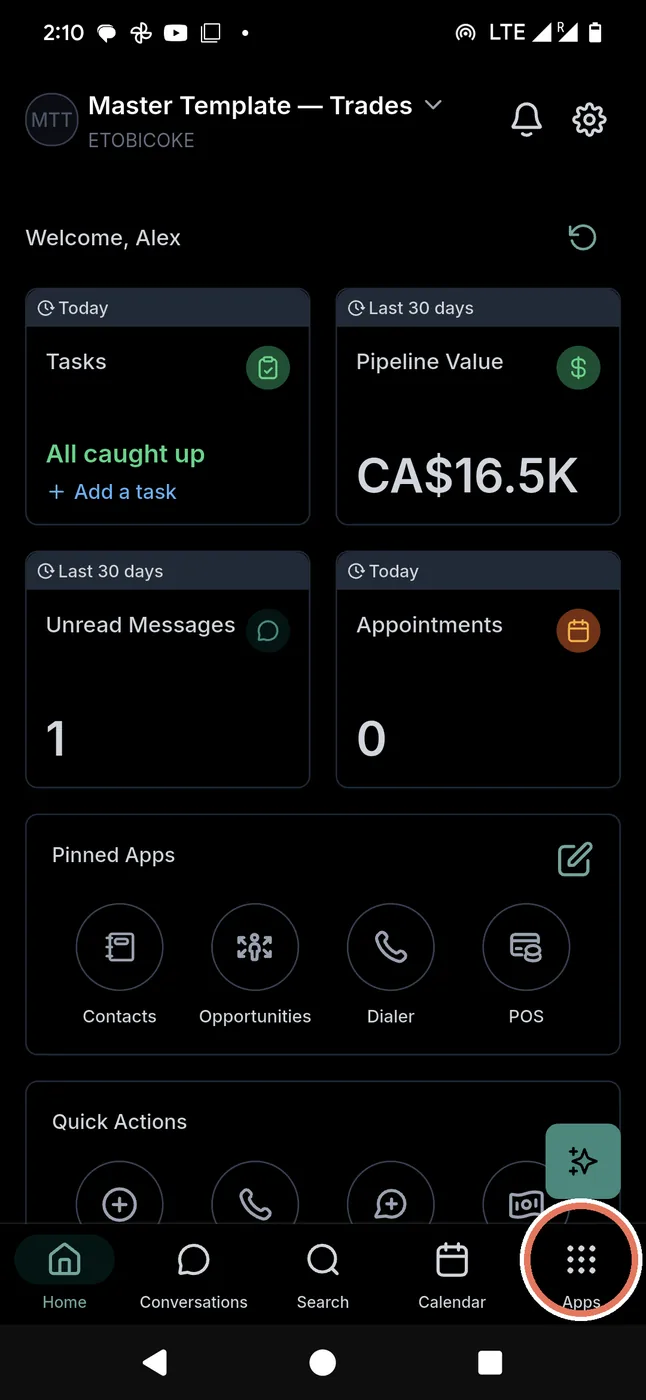
What to doPress Apps, at the bottom right. The 9 dots.
Don't worryThere is a lot here. You need one thing only.
2 Find Reputation You want the star. ▾
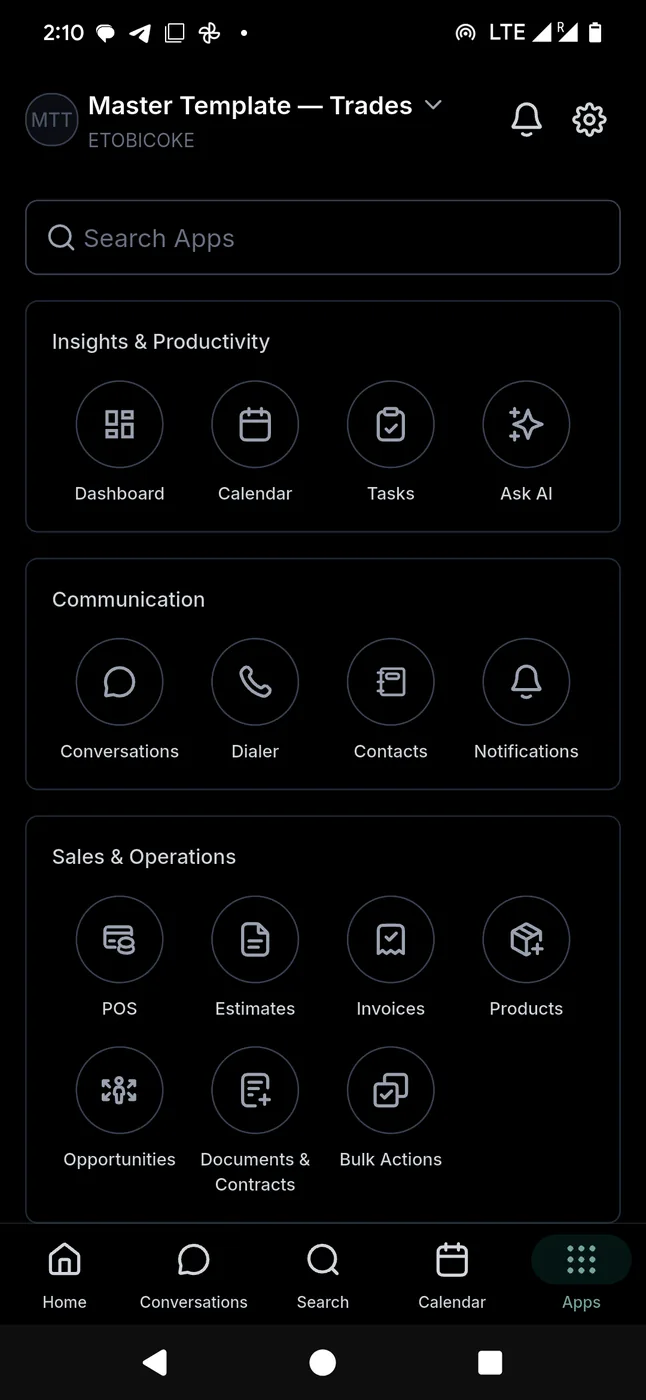
Your screen now
→
After you slide up
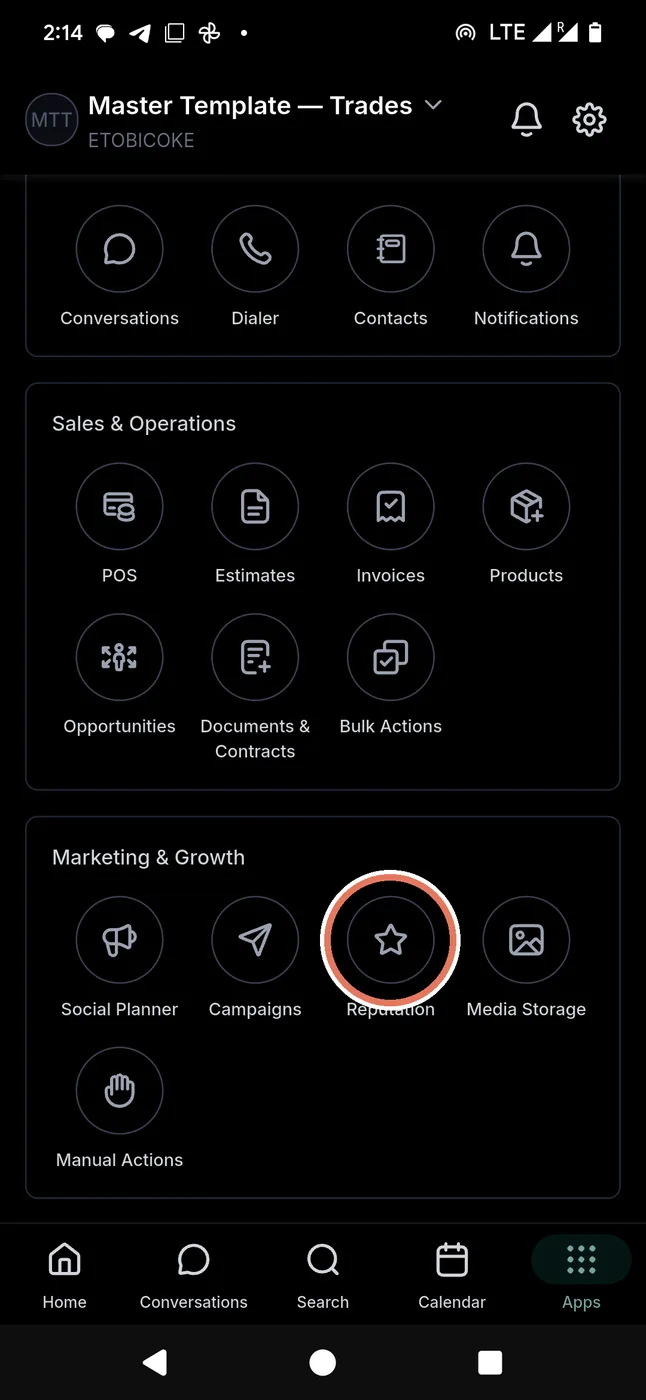
What to doPut your finger on the screen and slide it up. Keep sliding.
Keep sliding until you see thisSlide past Communication. Slide past Sales & Operations. Stop when you see the heading Marketing & Growth. Reputation is under it, with a star.
ThenPress Reputation. It has a star.
3 Your reviews screen You want to know the 3 words at the top. ▾
Example
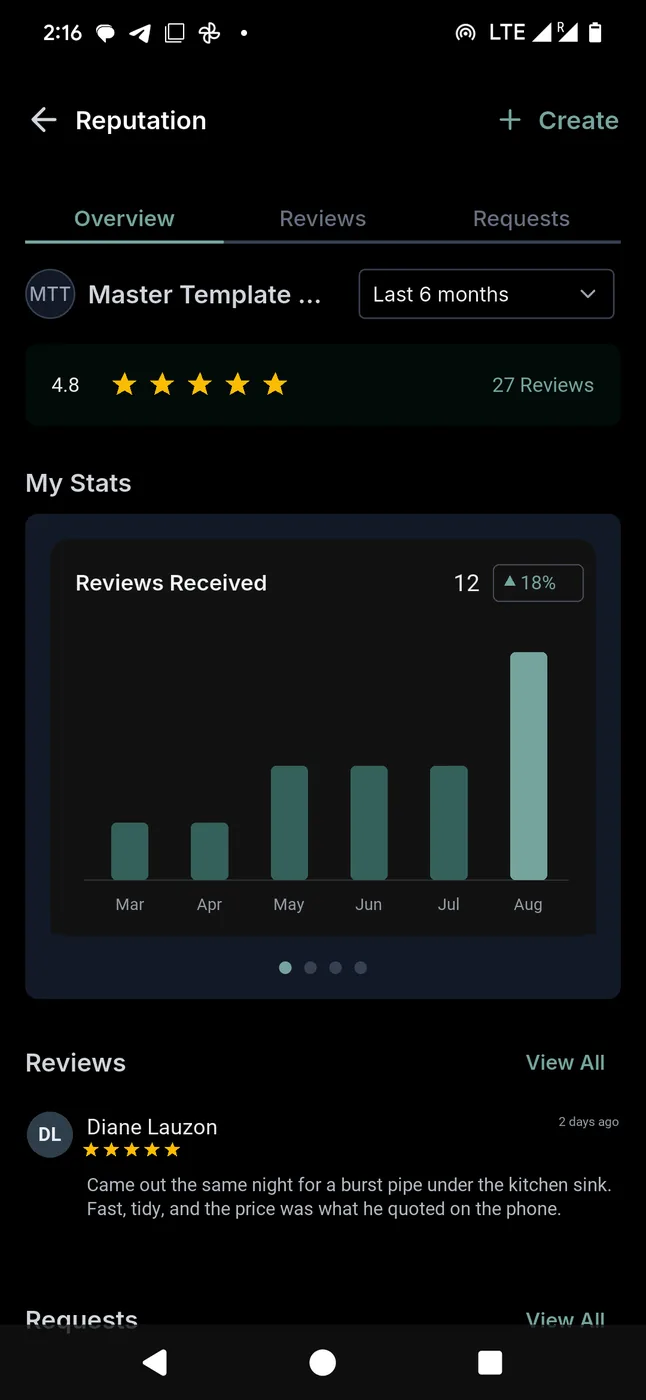
About this pictureThese numbers are an example, so you can see what the screen looks like once it is working. Yours starts at 0 and fills up as customers leave reviews.
The three words
- Overview — your numbers.
- Reviews — what customers wrote.
- Requests — the messages you sent.
4 Where reviews come from You already did the work. ▾
What happensWhen you open a finished job and set Status to Won, the app asks that customer for a review. The same day, while they still remember you.
Where that isIt is the last step in Your day. Nothing on this page happens without it.
5 Answer every review 30 seconds each. ▾
Your reviews
Reputation+ Create
OverviewReviewsRequests
DL
Diane Lauzon
★★★★★ Today
★★★★★ Today
Came out the same afternoon and cleared the basement drain. Cleaned up after. Very fair price.
AI ReplyReply
NP
Nick Petrakis
★★★★★ Yesterday
★★★★★ Yesterday
Turned up when he said he would and did the job properly.
AI ReplyReply
Demo Plumbing Co.Thank you Nick. Glad we could help. Call us any time.
A drawing, not your phone. Your screen will look like this once you have reviews.
After you press Reply
Diane Lauzon★★★★★
Came out the same afternoon and cleared the
basement drain. Cleaned up after. Very fair price.
Write your answer…
Send
A drawing. Nobody has photographed this screen yet.
Three parts
- Say thank you. Use their name.
- Say what you fixed.
- Ask them to come back.
"Thank you, Dave. I am glad we fixed the pipe before the weekend. Please call us any time."
WhyNew customers read your answers, not only your stars.
6 A bad one came in Wait 1 hour. ▾
FirstPut the phone down. Do not answer angry. Wait 1 hour.
Then say three things
- Thank them for telling you.
- Say sorry for your part.
- Ask to phone them.
"Thank you for telling me, Sandra. You waited too long and I am sorry. I want to fix this. I will phone you today."
NeverNever argue. Never talk about money. Every future customer reads your answer.
7 The two rules that protect you Read once. Never break them. ▾
Ask everyoneNot only the happy ones. Google watches this. Only happy reviews can close your listing.
Never payNo money. No discount. No free work. No draw. One paid review can cost you every real one.
Not a real customer?Do not answer it. Do not argue. Phone us and we report it for you.
That is everything.
You know the whole system. Two minutes a day keeps it running.
Pictures taken from the Lead Connector app, August 2026. Guide built 2026-09-09. If your screen looks different from a picture here, the app has changed — phone us and we will send you a new copy.